| <-- Previous | Contents Page | Next --> |
Installing the Operating System
Now you’re ready to write ("burn") the operating system image onto the micro-SD card. There are lots of applications that will burn the image including the official Raspberry Pi Imager, which you can install from here'. Software like this tends to change over time. This is how the version that I downloaded works.
The software takes you through a series of screens. In the first screen, choose the type of your Raspberry Pi – version 4, 5 or whatever:

The first burner screen
The first burner screen
The next screens concern stuff that will be pretty familiar if you’ve ever set up a computer. You choose the name that the machine will know itself by, then set your user name and password, the timezone, keyboard layout and the connection details of your local WiFi network (name and password). If the computer on which the burner software is running on already has the WiFi connection details set up, the burner picks up those setting automatically.
The final screen concerns the use of an ssh key. Essentially this ensures that you and only you can connect to the Pi over your local network. I describe that in detail here. Connecting using an SSH key is easier and much more secure than using a username and password.
The screen looks like this:
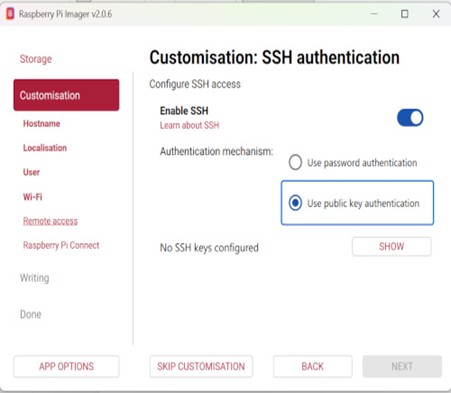
the ssh cnfiguration screen
the SSH configuration screen
Once you have created your ssh key files, set the switch to Enable SSH, choose Use Public Key Authentication and press the Show button to navigate to and choose your public key file. It should be in a folder called ".ssh" in your home directory.
Once you've configured your operating system, the burner writes the image to the SD-card. Once that's done, Go back to the Windows File Manager, right click on the card and eject it. Now you can take it out of the computer and push it into the Raspberry Pi. The slot is on the bottom of the circuit board, on the end opposite to the USB and network connections.

The Raspberry Pi circuit board with the Micro-SD card inserted
| <-- Previous | Contents Page | Next --> |